
Access Evidence Help Center
Create Jira or Confluence access reviews, assign reviewers, capture decisions, track remediation, and export evidence packs with verifiable integrity details.
Current status
This documentation supports the active Access Evidence Marketplace listing. Start from the product page for positioning and Marketplace links, then use this help center for operating details and evidence-export workflows.
Quick Start / After Install
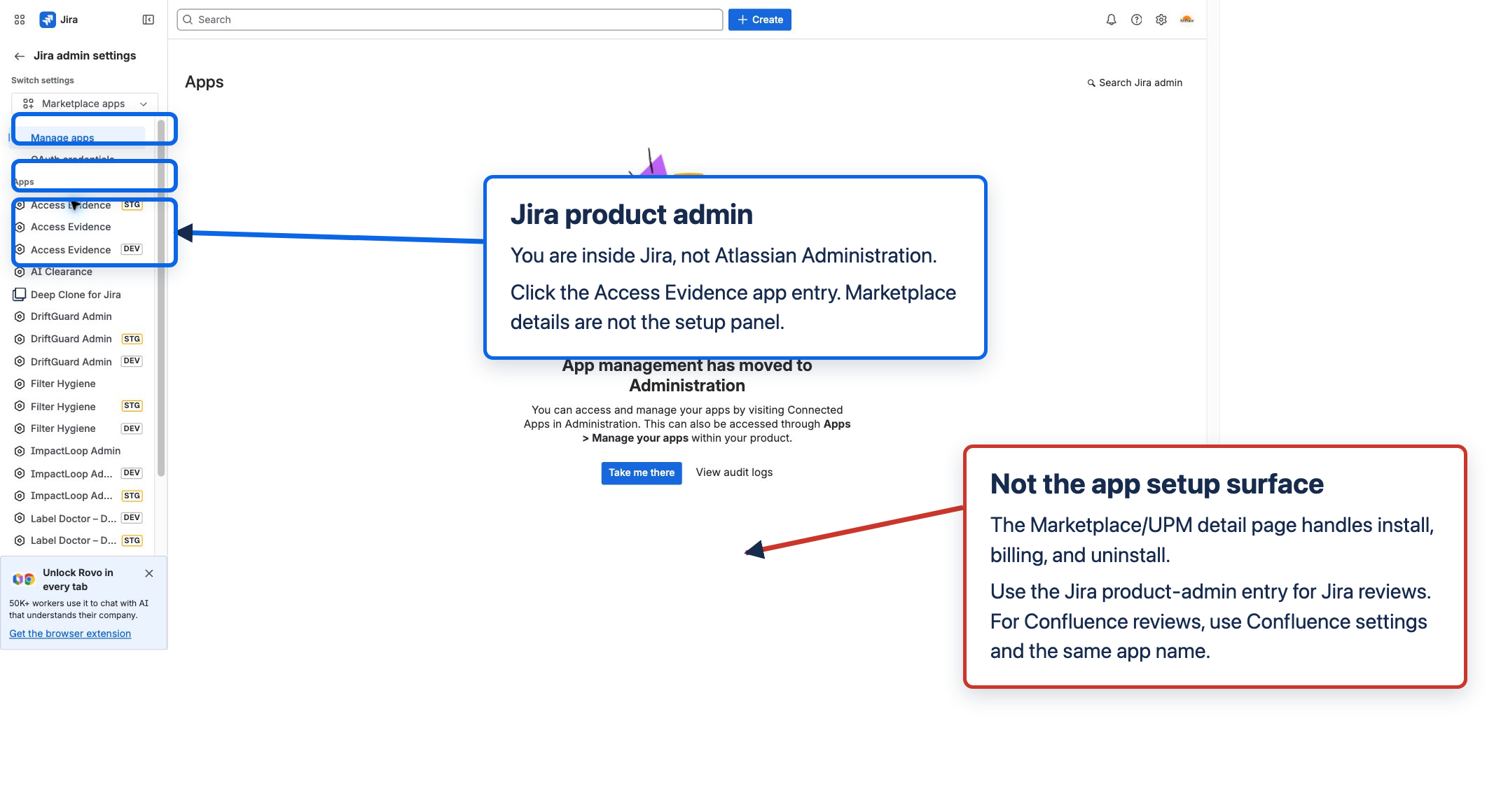
Start in the Atlassian product where the review will run, not Atlassian Administration. For Jira reviews, open https://<site>.atlassian.net/jira. For Confluence reviews, open https://<site>.atlassian.net/wiki. Marketplace listing/details and org-level administration are not the review setup surface.
Surface map
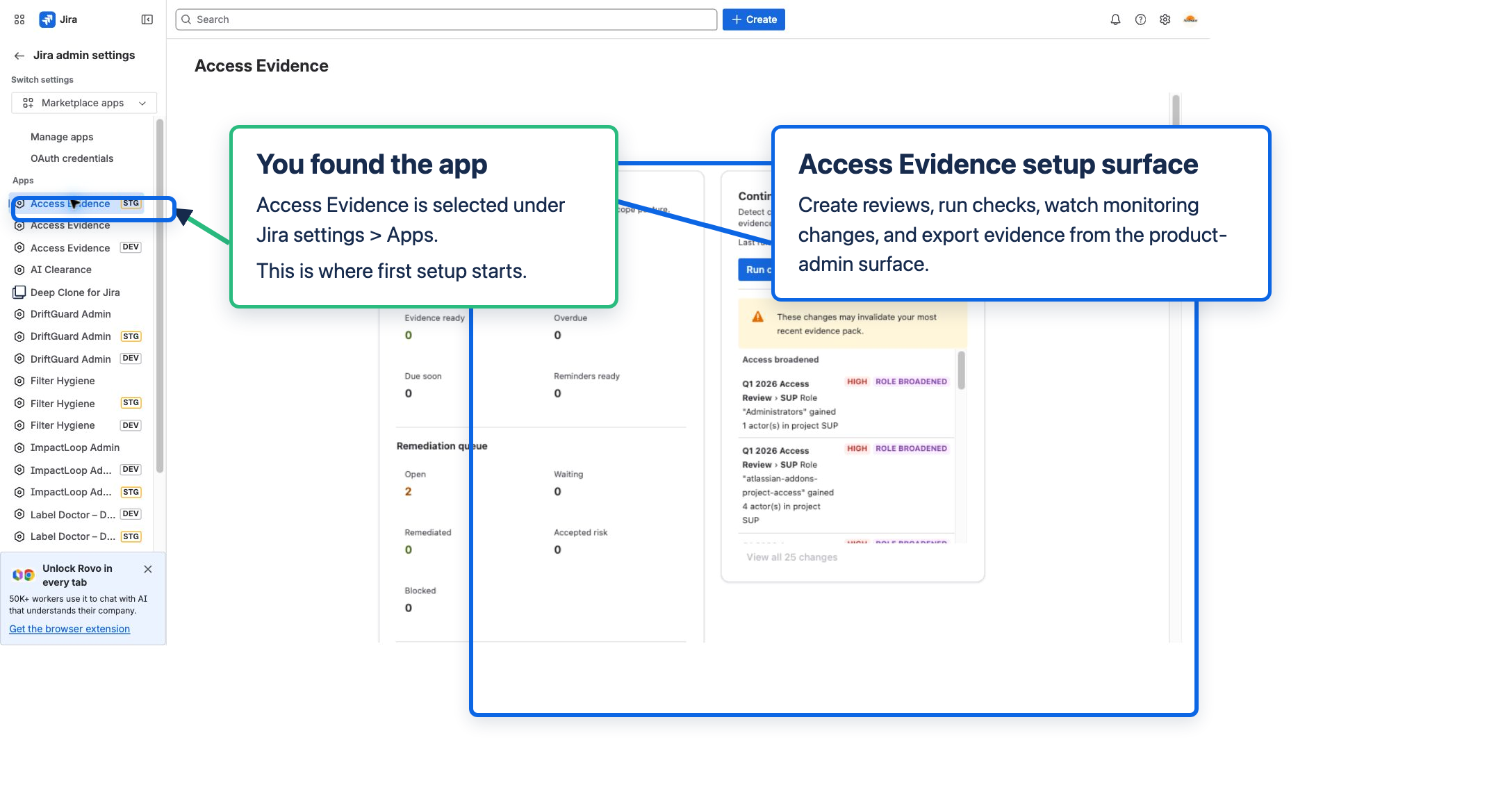
- Jira admin surface: create Jira access reviews, resume scans, generate evidence packs, download exports, and manage review activity. Reach it from Jira settings → Apps → Access Evidence.
- Confluence admin surface: create Confluence space reviews and publish evidence packs. Reach it from Confluence settings → Access Evidence.
- Review Findings surface: reviewers record Keep access, Remove access, Exception, remediation, and verification decisions inside the scoped Jira project or Confluence space.
- Marketplace surface: install, billing, app details, and uninstall. It is not where reviews are created or exported.
Five-minute path
- Choose the product first: Jira projects or Confluence spaces. One review covers one product at a time.
- Open the correct product URL:
https://<site>.atlassian.net/jirafor Jira orhttps://<site>.atlassian.net/wikifor Confluence. - Open Jira settings → Apps → Access Evidence or Confluence settings → Access Evidence.
- Create one small review with a limited project or space scope.
- Assign one reviewer and wait for the scan to finish.
- Open Review Findings from the scoped project or space and record one test decision.
- Return to the admin surface and generate a standard evidence pack.
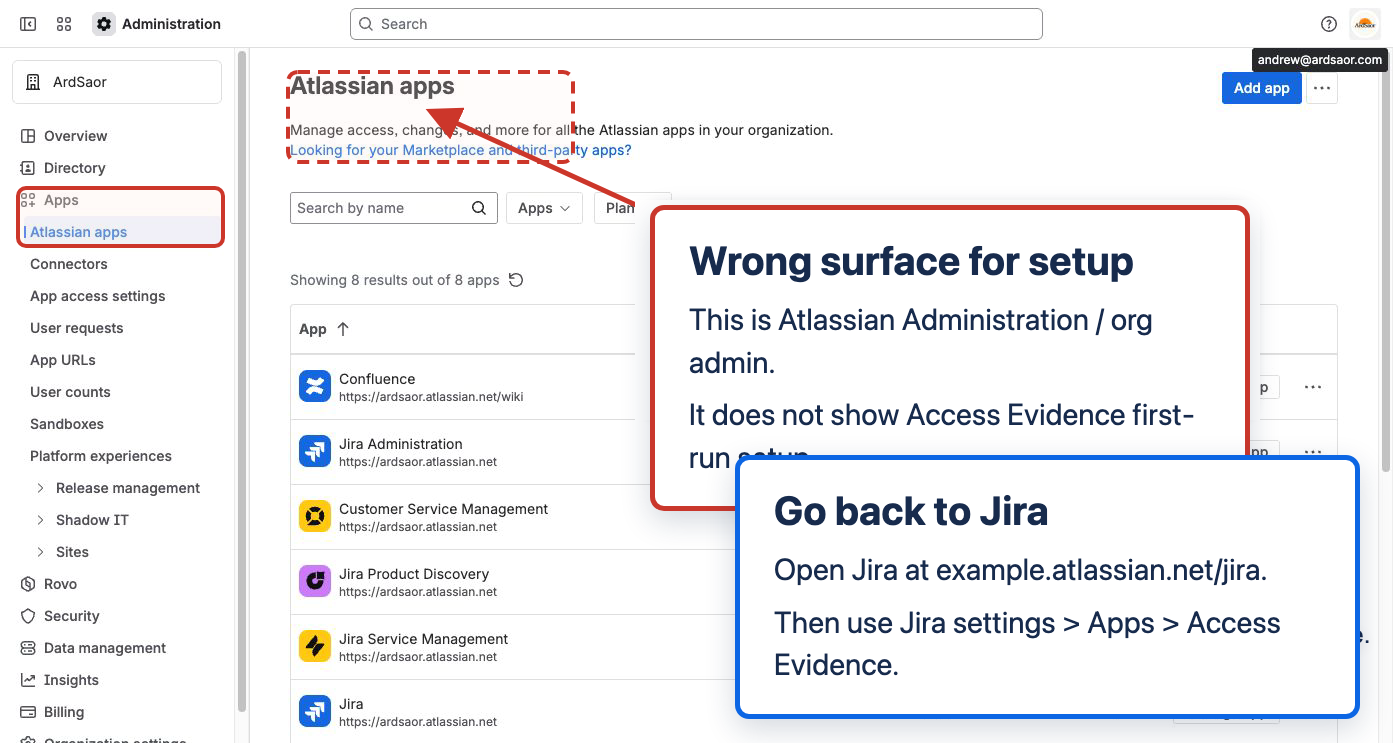
If you are in Atlassian Administration
Atlassian Administration is the org-level surface under admin.atlassian.com. Use it for organization, users, billing, and connected apps. Access Evidence review setup lives in Jira or Confluence product settings. Switch to the product URL, then open the app entry from product settings.
If Access Evidence is missing
- Confirm you are in the correct Jira or Confluence Cloud site.
- Confirm Access Evidence is installed and licensed on that site.
- Confirm your user has product admin rights for the product where you are creating the review.
- Refresh the product after install. Forge app entries can take a short time to appear.
Use the Atlassian site link helper if you only have a site name and need Jira, Confluence, or Manage apps links.
Setup screenshots
Interface screenshots

Contents
Quick Start
If you are setting up Access Evidence for the first time, use this order:
Site admin setup
- Open Jira Settings → Apps → Access Evidence for Jira reviews, or Confluence settings → Access Evidence for Confluence reviews.
- Click Create new review, choose Jira or Confluence, and give the review a clear name.
- Select the projects or spaces you want to scan. One review covers one product at a time, so Jira and Confluence use separate reviews.
- Choose reviewers. Jira reviews can use project-based reviewers or manual users/groups. Confluence reviews use manual reviewers.
- Wait for the scan to finish. If it pauses because of time, budget, or coverage issues, use Resume scan or Finish with partial coverage.
- When the review card is ready, open Review Findings from the relevant Jira project or Confluence space and start recording decisions.
Reviewer flow
- Open the relevant Review Findings page inside the scoped Jira project or Confluence space.
- For each finding, choose Keep access, Remove access, or Exception.
- If you remove access, update remediation as Pending, Attest complete, Verify removal, or Cannot verify.
Where You Work
- Admin page: Create reviews, resume paused scans, generate packs, download exports, and review drift activity.
- Review Findings page: Assigned reviewers, review owners, and site admins record decisions and remediation against the scoped project or space.
- Settings page: Open Jira project settings → Access Evidence Settings to manage limits, retention, integrity checks, diagnostics, alerts, and deletion. The settings are site-wide even though the entry point lives in Jira project settings.
How Access Reviews Work
Review scope
- Each review is either Jira or Confluence.
- Jira reviews scan selected projects for privileged access findings.
- Confluence reviews scan selected spaces and route reviewers back to the space-level review page.
Status labels you may see
- Draft or Scanning: Access Evidence is still building findings.
- Paused: The scan stopped because of a time limit, budget limit, or scope error.
- Partial: An admin accepted incomplete scope so the review can continue with documented gaps.
- Active: Findings are ready and some still need decisions.
- Complete: Every finding currently in scope has a decision.
Risk and decision model
- High, Medium, and Low risk badges help reviewers prioritize findings.
- Keep access records that the grant is valid.
- Remove access creates a remediation record that can be tracked to completion.
- Exception records a temporary approval and requires both a justification and an expiry date.
Remediation Tracking
Remove decisions stay auditable after the review decision is made.
- Pending means the removal work is underway.
- Attested complete records a manual completion note from the reviewer or admin.
- Verify removal runs an in-app check against the current system state.
- Cannot verify records that the work is done but cannot be automatically proven, and requires a note.
Evidence Packs
Evidence packs are generated from the review card on the admin page.
- You can generate a pack once the scope scan is finished, or after an admin explicitly accepts partial coverage for a paused review.
- A fully reviewed campaign produces the cleanest audit trail, but the export always records current findings, decisions, remediation state, and any coverage gaps.
- Use Download evidence pack for the standard ZIP. The review card menu also offers a Signed audit pack when that export is available.
- The standard export includes scope data, findings, decisions, remediation records, drift events, job receipts, Decision Log data, and a
coverage_and_gapssummary. verification_summaryandpack_manifestexplain how to validate file hashes and, when configured, a public-key signature.ledger_integrityrecords the Decision Log integrity verification Access Evidence performed at export time.- Confluence reviews can also Publish the latest pack into a Confluence space.
Monitoring and Alerts
After you have at least one access review, Access Evidence can help keep that evidence current between review cycles.
- The admin page drift panel shows changes detected since the last captured baseline.
- Scheduled drift checks and alert digest runs execute daily.
- In Settings → Advanced, site admins can enable drift alerts, limit them to broadened changes, and choose immediate or digest delivery.
- Alert destinations create Jira issues inside your Jira site. They do not rely on external webhooks or third-party alerting services.
Access, Permissions, and Data
- Site admins with an active license can create reviews, manage settings, run integrity checks, and configure alerts.
- Review owners and assigned reviewers can record decisions on Review Findings pages for their scoped project or space.
- Without an active license, findings remain viewable but new reviews, new decisions, remediation updates, drift runs, and settings changes are locked.
- Access Evidence stores review data in Forge-hosted app storage. Retention and delete-all controls live in Settings.
Why the app asks for Jira and Confluence permissions
Atlassian installation scopes are product-level API permissions, so the consent screen can look broader than a single review. Access Evidence narrows use inside the app: admins choose the Jira projects or Confluence spaces to review, and the app uses those permissions only to build findings, record review work, and export or publish evidence.
- Jira read scopes let the app read project, role, permission-scheme, user, and audit-log metadata needed to explain privileged access findings.
- Jira write scope is used for in-site follow-up artifacts such as remediation or alert issues when an admin configures them. It is not used to silently change project permissions.
- Confluence read scopes let the app list selected spaces, read space permissions, and check reviewer/content access for Confluence reviews.
- Confluence write scope is used only when an admin chooses to publish an evidence pack into a Confluence space.
- Forge storage stores review configuration, findings, decisions, remediation state, evidence metadata, and retention/deletion records within Atlassian Forge app storage.
Troubleshooting
I cannot create a review
- Confirm your account is a Jira site admin.
- Confirm the app license is active.
- For Confluence reviews, start from Confluence settings → Access Evidence, not from the Jira admin page.
The scan paused or shows partial coverage
- Use Resume scan to continue after a time limit or budget limit.
- If some scopes cannot be scanned cleanly, use Finish with partial coverage and let the exported pack document the gaps.
Reviewers cannot act on findings
- Confirm the reviewer is assigned to that project or space, or qualifies through the configured reviewer model.
- If the review is still incomplete, an admin must accept partial coverage before decisions and remediation updates are allowed.
No findings appear for a project or space
- Access Evidence focuses on privileged access findings. A clean scope can legitimately return no findings.
- Coverage warnings in the review details or exported
coverage_and_gapsfile explain when some access paths could not be fully evaluated.
Automatic verification says "Cannot verify"
- Use Attest complete or Cannot verify when automatic proof is not possible.
- Add a note describing what changed so auditors can see the remediation context.
Alerts are missing
- Confirm you already have at least one access review. The Advanced settings surface appears after the app has review data.
- Confirm drift alerts are enabled and at least one Jira issue destination is configured.
- If delivery mode is digest, wait for the configured digest interval instead of expecting an immediate issue.
Signed audit pack export fails
- Very large packs may be too large for signed UI export.
- Download the standard pack instead, or reduce review scope and re-export.
Security & Privacy
- Data is stored in Atlassian Forge infrastructure and protected by Atlassian-managed encryption controls.
- Exports include independently checkable file hashes and recorded Decision Log integrity verification details.
- Drift alerts stay inside Jira by creating Jira issues in destinations you configure.
- See the app-specific Access Evidence Data Security & Privacy Statement.
FAQ
Does Access Evidence remove permissions automatically?
No. Your admins make permission changes in Jira or Confluence. Access Evidence records the review decision, remediation status, and verification trail.
Can one review include both Jira projects and Confluence spaces?
No. Each review is created for one product at a time. Create separate reviews for Jira and Confluence.
When can I generate or download an evidence pack?
After the scope scan has finished, or after an admin accepts partial coverage for a paused review. Complete reviews produce the strongest evidence, but exports can still document work in progress.
What is the difference between attested and verified remediation?
Attested complete is a manual statement from the reviewer or admin. Verified complete means Access Evidence checked the current system state and confirmed the removal.
How long is review history kept?
Retention is controlled in Settings by your admins, and the Settings danger zone also includes a delete-all-data action for the current site.
Support
Need help or have a feature request? Contact us at our support inbox or use the support page. Include your site URL, the review name, the time of the problem, and a support bundle or recent run ID from Settings → Support when possible.
What to send support
- Atlassian site URL, for example
https://example.atlassian.net/jiraorhttps://example.atlassian.net/wiki. - Current browser URL where you got stuck.
- Screenshot of the page you are on.
- Whether you are in Jira, Confluence, product settings, Atlassian Administration, Marketplace, or a Review Findings page.
- Review product and scope: Jira project review or Confluence space review.
- Review name, reviewer, project key or space key, and current review status if available.
- The action you attempted: create review, resume scan, finish partial coverage, record decision, verify remediation, generate evidence pack, publish pack, or other.
- Your role on the site: Jira admin, Confluence admin, project admin, space admin, reviewer, org admin, evaluator, or other.
Version and updates
Last updated: 2026-05-07 (America/Vancouver)
This page is maintained against the current Access Evidence implementation so new users can follow the real product flow rather than roadmap behavior.
Related documentation
Product pages provide current positioning and Marketplace links; documentation pages provide operating details.